Adding the BibliU SSO log in page to your LMS
Follow
- In Canvas, click on:
- “Admin” in the Global Navigation bar on the left
- Click “Settings” on the next navigation bar
- Select “Apps” on the top tab
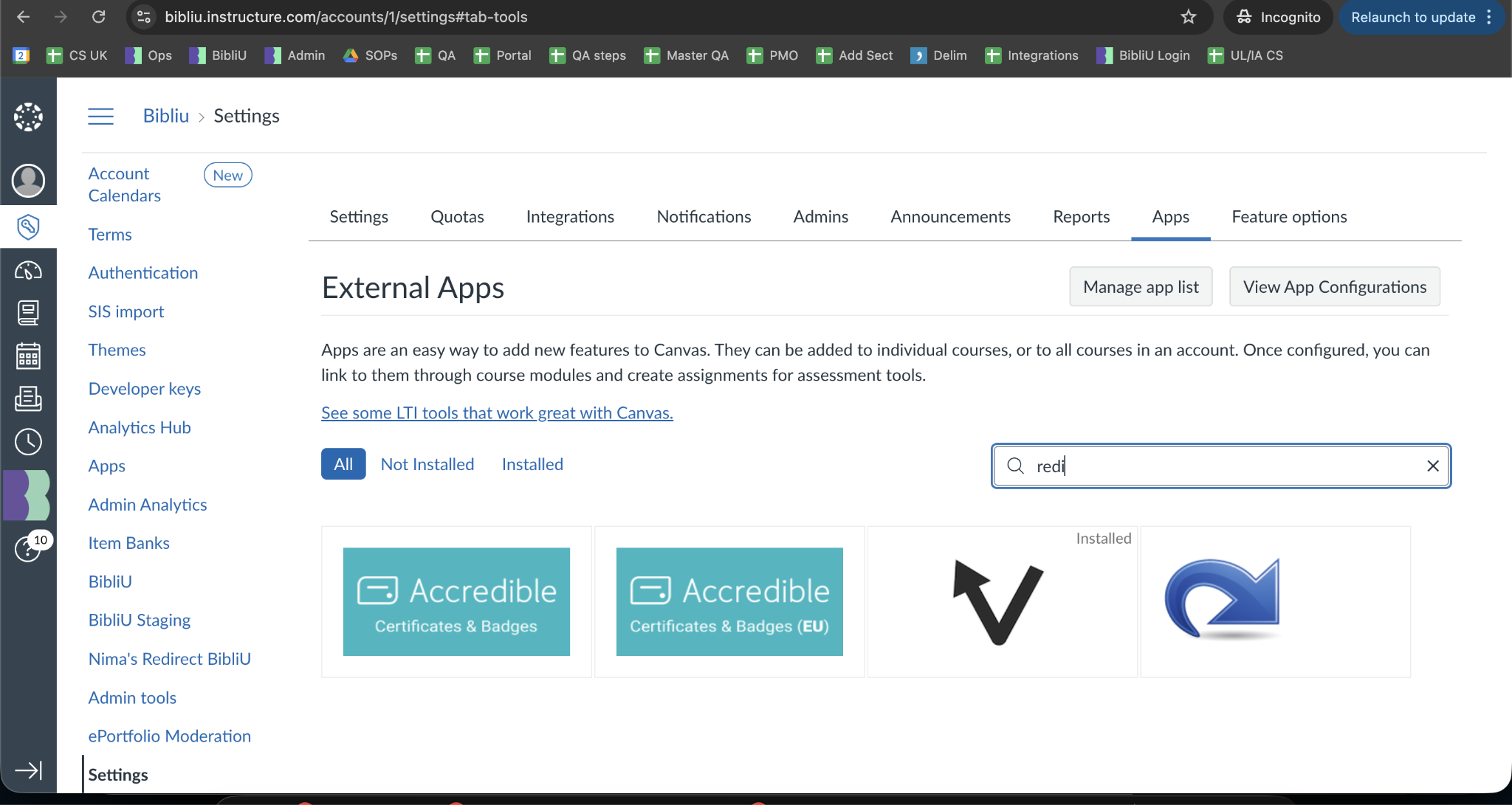
- Search for an app called ‘Redirect Plus’
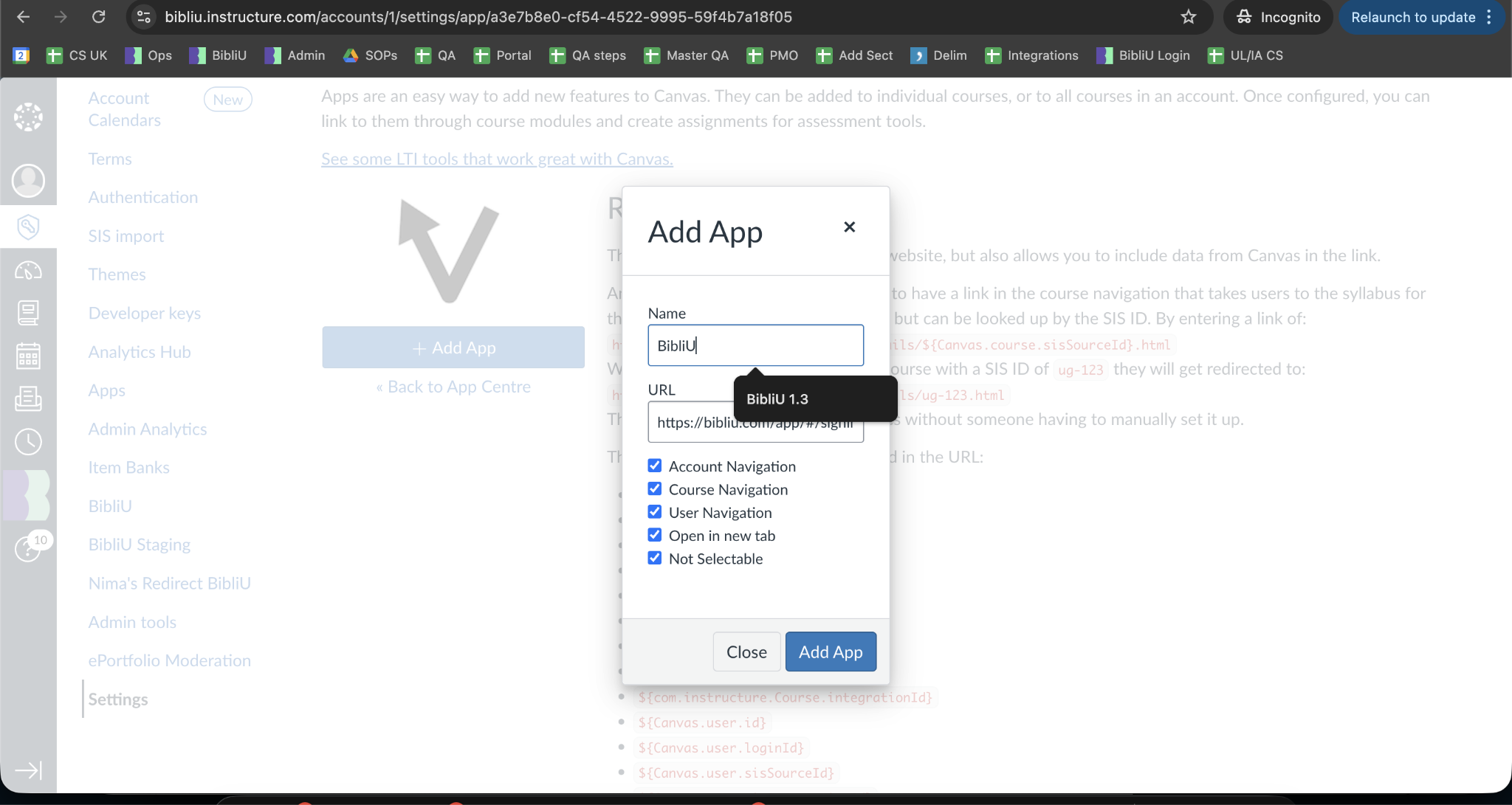
- Name what you would like students to see when they want to navigate to BibliU, so “BibliU Course Materials”, or “BibliU”
- Once added, click on “View App Configurations”
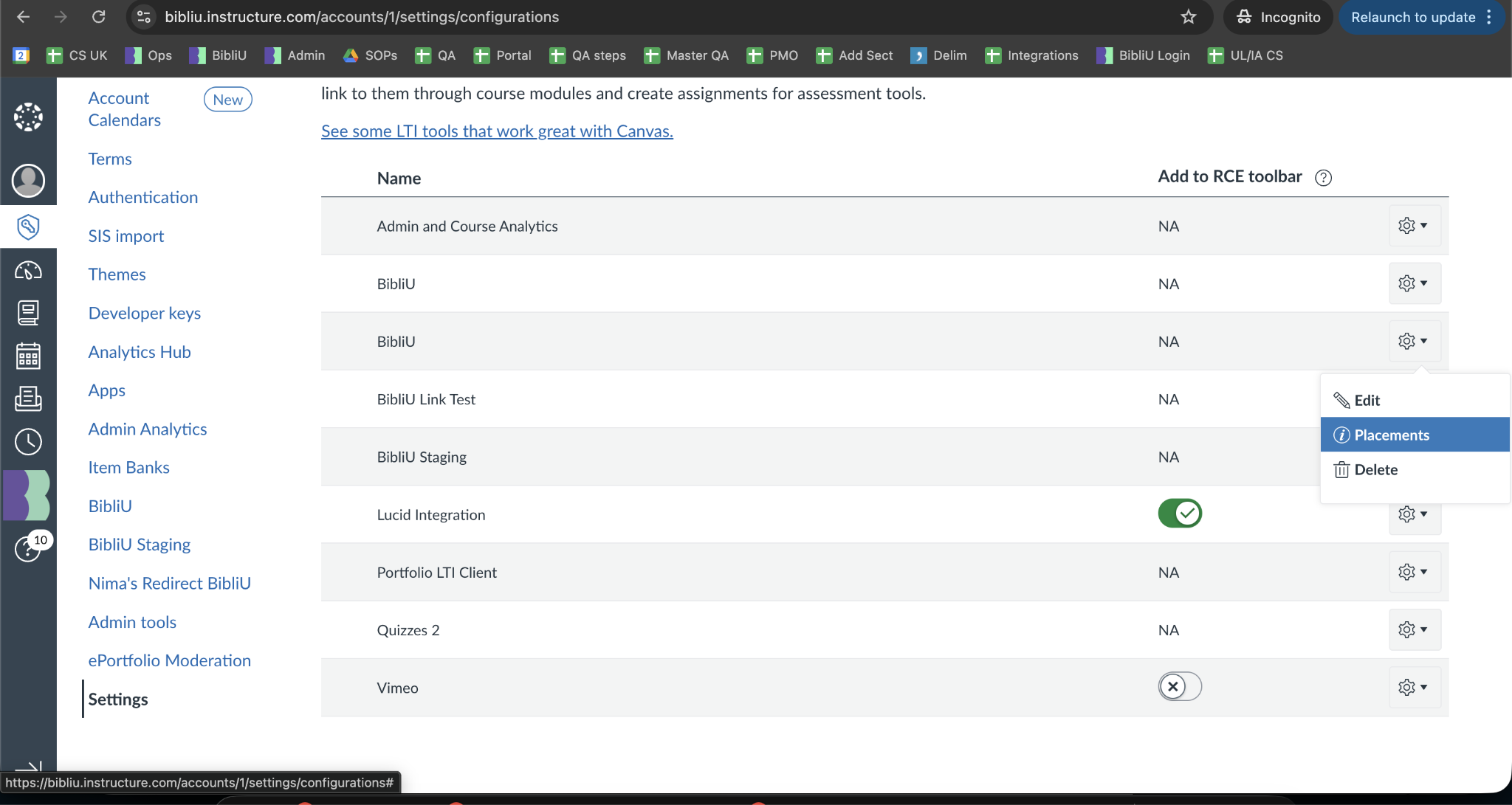
- Locate the app you’ve just added and click on the settings icon on the right
- Select “Placements”
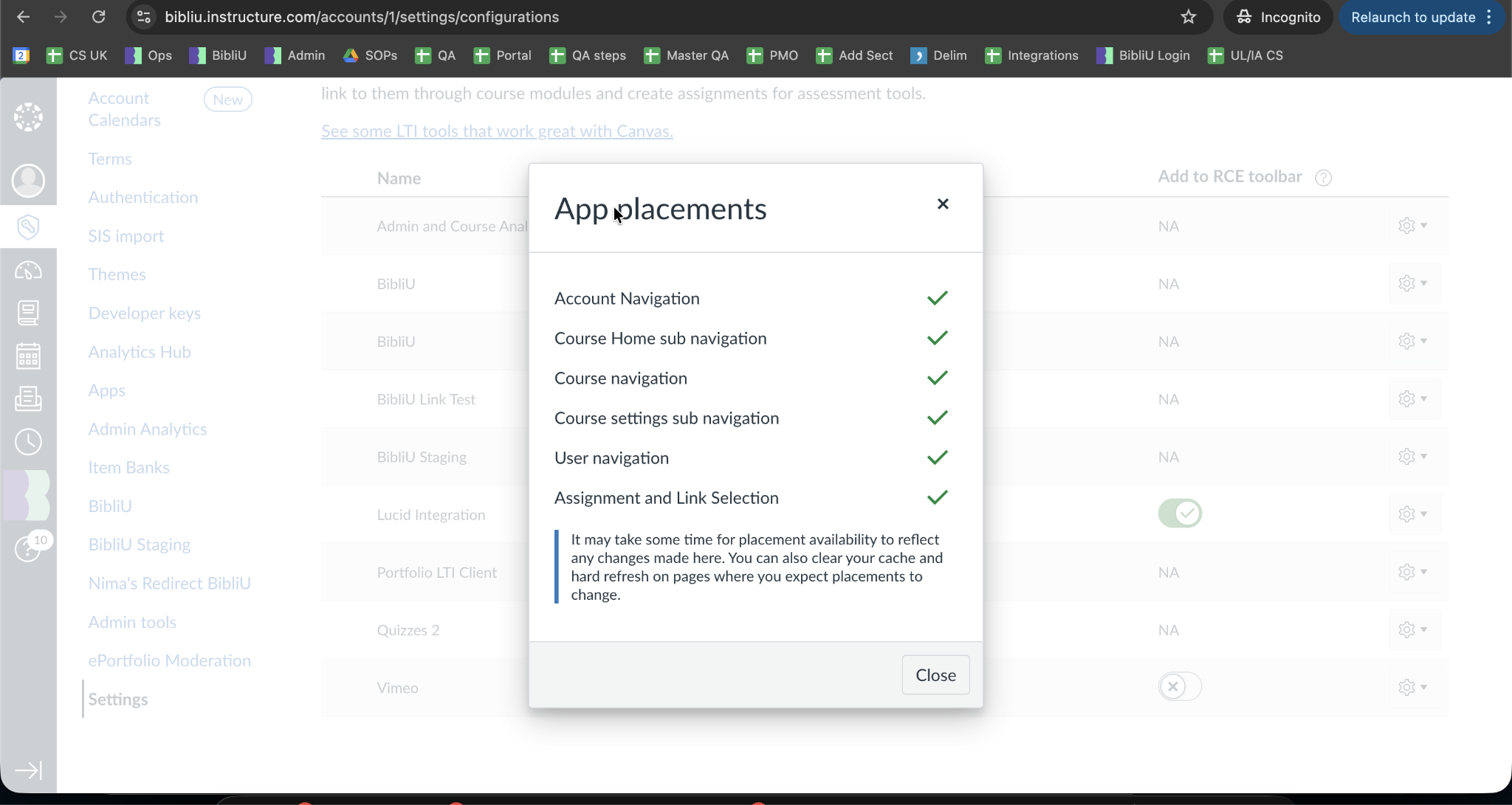
- Enable placements as shown (you can choose to not include the ones that you don’t want to have at this stage or later on)
- Navigate to a course - you should now see that the app you installed appears on the right hand side and on the course navigation menu

Comments
0 comments
Please sign in to leave a comment.